Click on images to see them in full screen
GSM/CDMA Kits and Setup
smsPULSE MM offers two-way communications using GSM and CDMA modem devices. You may connect multiple devices and these will be handled in parallel for both inbound and outbound SMS/MMS. You may use GSM devices over COM ports (RS-232) or any other Windows TAPI device which accepts AT Commands as required by GSM (say using a USB port). You may also connect GSM devices over COMM servers connecting to your server over IP.
CDMA modems were introduced in smsPULSE V8.1 and you must use the smsLINES Service even when not using MMS (see more below).
To use any GSM related services you must upgrade your license from the standard smsPULSE software, to smsPULSE MM (Multi-Mode). To accommodate installations of varying sizes, each SMS/MMS line is licensed separately.
To use the GSM features you will need:
- A GSM modem (COM port or using Windows TAPI)
- A cable which connects the modem to the server (serial cables or USB)
- A power supply unit for the modem (often sold separately)
- An antenna which connects to the modem (sometimes optional)
- A SIM card with an active account
- You may also wish to buy an SMS credit package from your SIM supplier
- Upgrade your smsPULSE license to smsPULSE MM.
Optional GSM Kits supplied by us
We like to make it easy for you to install our server software. Therefore we offer GSM Kits which include all the required components to get you going with the exception of a SIM card. The Kits include:
- GSM Modem appropriate for your country
- Power supply appropriate for your country
- Serial or USB cable to connect to the server (tell us what ports you have)
- Antenna to connect to the modem
The only item you need to get is a SIM card from your local telco. Note that we support and warrant our kits for one year. If something goes wrong, we send you a new one - easy.
Before we send you the kits this is what we do with them:
- We open all the packaging and assemble each kit
- We place our own SIM in
- We test each kit for 24 hours on our own installations of smsPULSE
- We send and receive multiple SMS/MMS using your kits
- We then disconnect the kits and package them with all the same components (not forgetting to take the SIM cards out)
- We send the packs to you
Net result: 100% success rate in deployment, worldwide
Overall steps to get the smsPULSE MM version working
- Connect all the GSM hardware components
- Enable your SIM cards on a phone and remove their PIN
- Insert into the GSM devices
- Connect the above to smsPULSE server (Domino or Windows editions)
- Run the smsLINES server add-in, installed as part of all smsPULSE MM installation
- Edit or create Communication Lines. New documents will be automatically created for devices found by smsLINES when defined in TAPI
- Run tests using Communication Lines documents
- Install an smsPULSE MM license (you will need to contact us for this), and generate Cell Keys using Communication Lines documents
- In the smsPULSE system profile, change the mode to "Dual Mode" - GSM and HTTPS, or GSM only
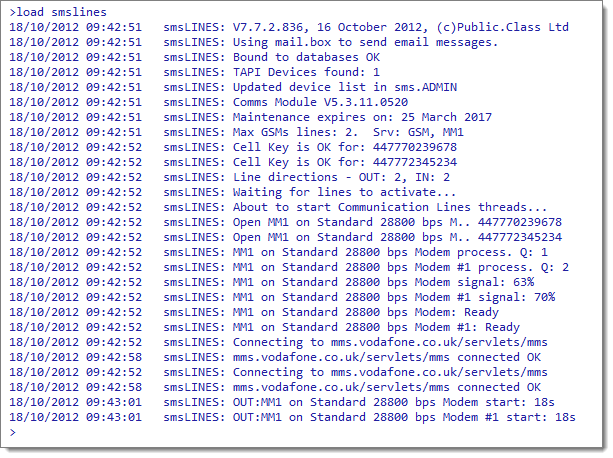 Getting Started with GSM/MMS Setup
When smsLINES add-in starts, it searches for GSM devices connected to the server which respond to GSM commands. This is an automated process which is performed while there are no existing Communication Lines documents.
Getting Started with GSM/MMS Setup
When smsLINES add-in starts, it searches for GSM devices connected to the server which respond to GSM commands. This is an automated process which is performed while there are no existing Communication Lines documents.
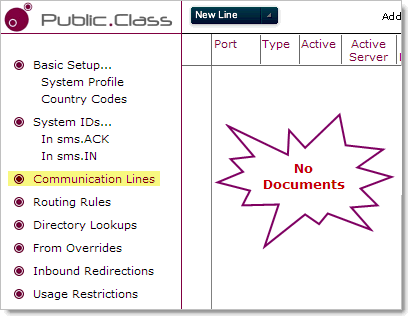 Starting smsLINES load...
In the example above, smsLINES found two GSM devices on COM1 and COM2 and one device on "Standard 19200 bps Modem" which did not respond. It was thus assumed that it was not connected.
The result is shown below:
Starting smsLINES load...
In the example above, smsLINES found two GSM devices on COM1 and COM2 and one device on "Standard 19200 bps Modem" which did not respond. It was thus assumed that it was not connected.
The result is shown below:
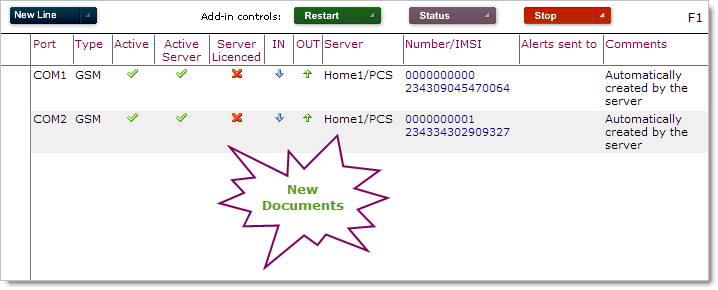 Edit the Communication Lines Documents
You may now edit the new documents and use these for the purpose of:
Edit the Communication Lines Documents
You may now edit the new documents and use these for the purpose of:
- Testing a line
- Licensing a line
For further information, see Communication Lines (GSM)  CDMA Modems
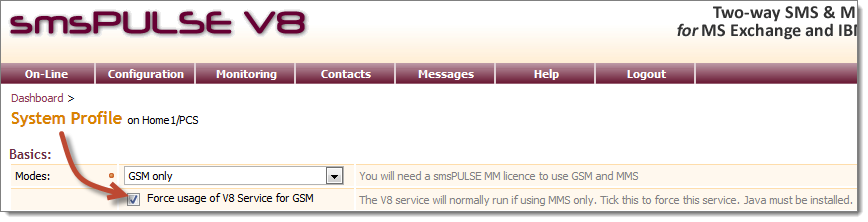
From smsPULSE v8.1 it is possible to connect CDMA modems to the smsPULSE server. To bind to these modems you must ensure that the smsLINES service is set to run. The service will run if any of your lines are set to use the MM1 protocol or if you force the usage of the new Service in the server's System Profile.
CDMA Modems
From smsPULSE v8.1 it is possible to connect CDMA modems to the smsPULSE server. To bind to these modems you must ensure that the smsLINES service is set to run. The service will run if any of your lines are set to use the MM1 protocol or if you force the usage of the new Service in the server's System Profile.
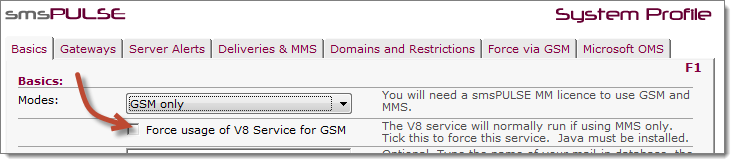 OR, in the Web UI
 You do not need to declare a modem as CDMA but you need to set its DNS address and insert this into each communication line record. To find the DNS address for a modem follow this procedure:
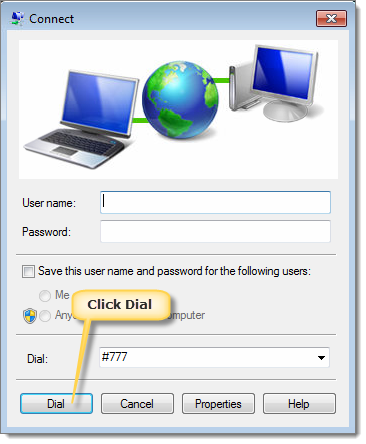
- In the Windows connection list for the relevant connection
- Open it or just "Connect"
- Dial #777
- Once the connection is established, open the command prompt
- In the command prompt type> ipconfig /all
- A list of connections will show, so locate the section relating to the CDMA modem
- The DNS address will show in that section, so copy it and type it into the Communication Line record
Dialing a connection:
 Connection details for the adapter, with a DNS entry:
PPP adapter <connection-name>:
Connection-specific DNS Suffix . :
Description . . . . . . . . . . . : <connection-name>
Physical Address. . . . . . . . . :
DHCP Enabled. . . . . . . . . . . : No
Autoconfiguration Enabled . . . . : Yes
IPv4 Address. . . . . . . . . . . : 75.202.147.244(Preferred)
Subnet Mask . . . . . . . . . . . : 255.255.255.255
Default Gateway . . . . . . . . . : 0.0.0.0
DNS Servers . . . . . . . . . . . : 198.224.180.135
198.224.179.135
NetBIOS over Tcpip. . . . . . . . : Disabled
Connection details for the adapter, with a DNS entry:
PPP adapter <connection-name>:
Connection-specific DNS Suffix . :
Description . . . . . . . . . . . : <connection-name>
Physical Address. . . . . . . . . :
DHCP Enabled. . . . . . . . . . . : No
Autoconfiguration Enabled . . . . : Yes
IPv4 Address. . . . . . . . . . . : 75.202.147.244(Preferred)
Subnet Mask . . . . . . . . . . . : 255.255.255.255
Default Gateway . . . . . . . . . : 0.0.0.0
DNS Servers . . . . . . . . . . . : 198.224.180.135
198.224.179.135
NetBIOS over Tcpip. . . . . . . . : Disabled